
How to Add a Contributor
This walkthrough adds your first contributor with the All Contributors Bot. It assumes that you have installed the bot on your repository.
-
Open an issue or a pull request
The bot responds to comments in any issue or pull request of the repository. The natural place is the conversation where the person helped, such as the pull request that fixed a bug. To try the bot out, create a new issue.
-
Mention the bot
Comment with the bot’s name, the person’s username and their contribution type. Replace
janedoewith a real GitHub username:@all-contributors please add @janedoe for doc -
Wait for the reply
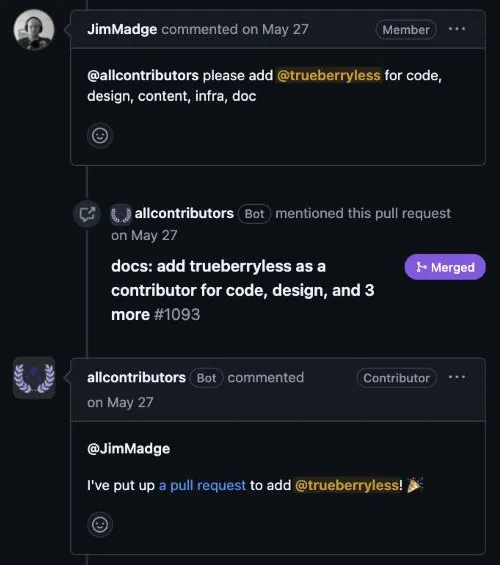
After a short moment, the bot replies in the same conversation with a link to a new pull request, for example “I’ve put up a pull request to add @janedoe! 🎉”. If it replies with something else, see Troubleshooting.
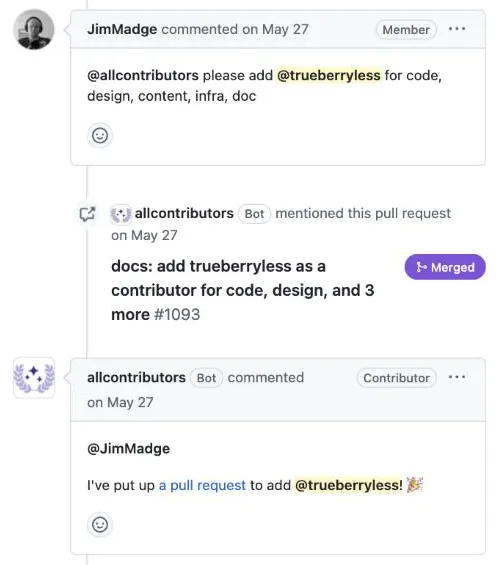
-
Review the pull request
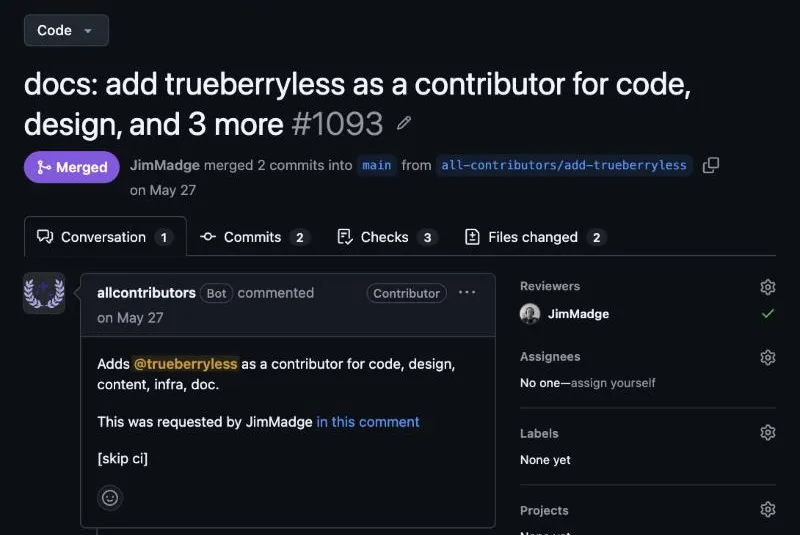
With the default settings, the pull request is titled
docs: add janedoe as a contributor for doc, and it links back to your comment. It adds janedoe to thecontributorslist in.all-contributorsrcand updates the table in your README, or in the files you configured.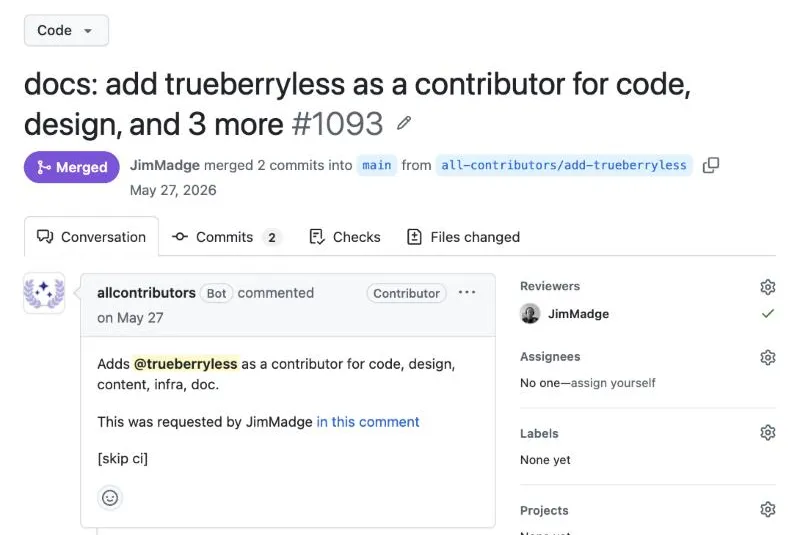
-
Merge it
Once you merge the pull request, janedoe appears in the contributor table.
Add contributors explains how to credit several contribution types or several people at once.